

Remote Desktop Protocol (RDP) is one of the most widely used — and most abused — features in Windows environments. Whether it’s a legitimate sysadmin logging into a server or a threat actor moving laterally through a compromised network, RDP leaves a trail. Knowing how to read that trail is a core skill for anyone doing incident response or threat hunting.
Why RDP Logs Matter
RDP is consistently one of the top initial access vectors for ransomware operators and other threat actors. If you have RDP exposed to the internet — even on a non-standard port — you will see brute force attempts. And if an attacker gets in, RDP is also their preferred method for moving from machine to machine inside a network.
The good news: Windows logs RDP activity in several places, giving defenders multiple opportunities to detect suspicious behaviour.
Where to Find RDP Logs
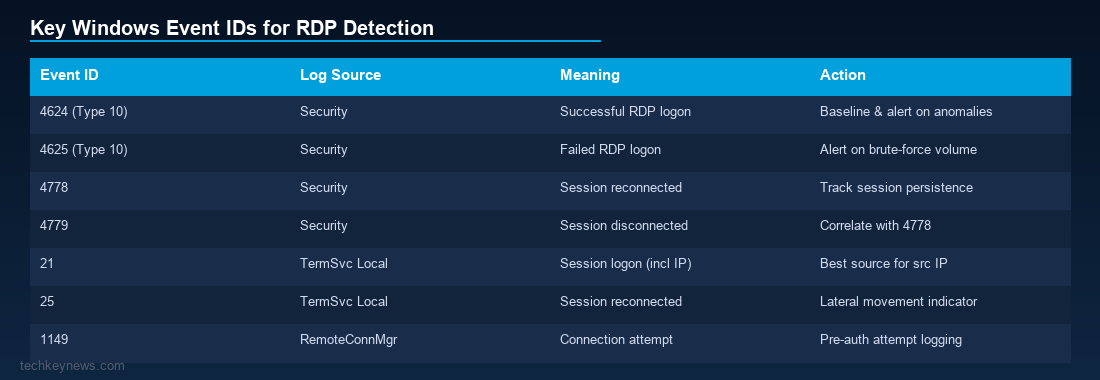
RDP-related events are spread across multiple Windows Event Logs. Here are the key locations:
1. Security Log — Event ID 4624 (Logon Success)
This is the most important event for RDP detection. A successful RDP logon generates Event ID 4624 with Logon Type 10 (RemoteInteractive).
Key fields to check:
- Account Name — who logged in
- Source Network Address — where they logged in from
- Logon Type — must be 10 for RDP
- Authentication Package — NTLM vs Kerberos
If NLA (Network Level Authentication) is enabled, you’ll also see a 4624 with Logon Type 3 before the Type 10, because NLA authenticates before the desktop session is created.
2. Security Log — Event ID 4625 (Logon Failure)
Failed RDP attempts generate 4625. A burst of 4625 events from the same source IP is a classic brute force indicator. Watch for:
- High volume in a short time window
- Multiple different usernames from the same IP (credential stuffing)
- Failures followed immediately by a 4624 success (successful brute force)
3. Security Log — Event ID 4778 / 4779 (Session Reconnect/Disconnect)
4778 fires when an RDP session is reconnected, and 4779 when it’s disconnected. These are useful for tracking how long sessions lasted and whether sessions were left open — a common attacker technique to maintain persistence.
4. Microsoft-Windows-TerminalServices-LocalSessionManager/Operational
This log lives under Applications and Services Logs and contains some of the richest RDP-specific events:
- Event ID 21 — Session logon succeeded
- Event ID 23 — Session logoff
- Event ID 24 — Session disconnected
- Event ID 25 — Session reconnected
These events include the source IP address, making them very useful for correlating who connected from where.
5. Microsoft-Windows-TerminalServices-RemoteConnectionManager/Operational
This log records connection attempts at the protocol level, before authentication. Event ID 1149 here shows the username and source IP for every RDP connection attempt — useful even when the security log doesn’t capture it.
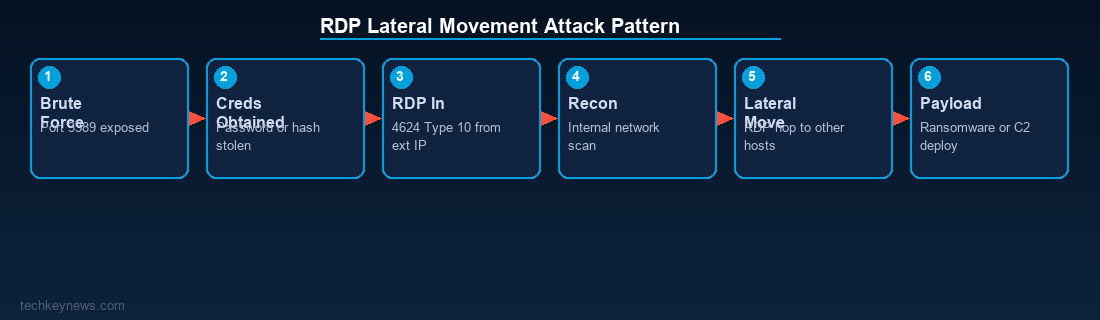
Hunting for Lateral Movement via RDP
When an attacker is already inside a network and using RDP to move laterally, look for:
- 4624 Type 10 events from internal IP addresses you wouldn’t normally see connecting via RDP
- Admin accounts logging in via RDP from workstations (admins should use jump hosts)
- Short-lived sessions — attackers often hop between machines quickly
- RDP connections at unusual hours
- The same source account appearing across multiple destination hosts in a short window
Useful Queries (Windows Event Log / Splunk-style)
# Failed RDP brute force (EventID 4625, Logon Type 10)
EventCode=4625 Logon_Type=10
| stats count by src_ip, user
| where count > 20

# Successful RDP from external IP (EventID 4624, Type 10)
EventCode=4624 Logon_Type=10 NOT src_ip IN ["10.0.0.0/8","192.168.0.0/16","172.16.0.0/12"]
Hardening Tips While You’re At It
- Enable NLA — it forces authentication before a full session is established
- Restrict RDP access with firewall rules; never expose port 3389 directly to the internet
- Use a VPN or jump host for remote access
- Enable account lockout policies to limit brute force
- Consider enabling Restricted Admin Mode to prevent credential caching
Wrapping Up
RDP logs are one of the richest data sources available to Windows defenders. If you’re building a detection programme or responding to an incident, getting comfortable with these event IDs will pay off quickly. The pattern of failed logins, successful logons, and session tracking gives you a surprisingly complete picture of who was where and when.





Leave a Reply